Or drop an image here. Use an image your browser can open.
Outer crop margins (px)
Transparent pixels become white in the GIF.
Loading the example sprite sheet…
Sprite sheet preview

One sprite sheet. One moving character.
A sprite sheet holds the individual moments of an animation. Here is the original red panda example: a sheet of nine poses and the looping GIF made from those frames.
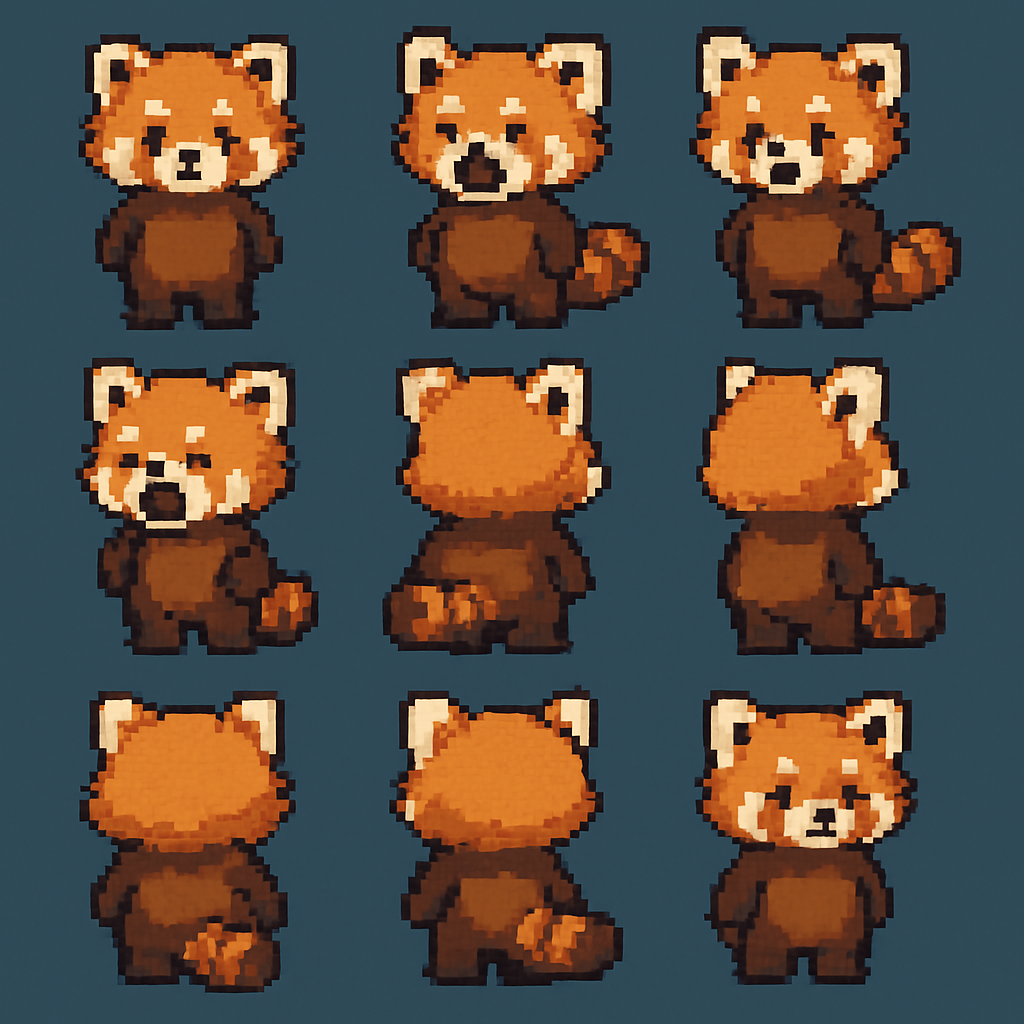
3 rows × 3 columns

The frames come to life
From sheet to GIF in 4 steps
Preview a game character, share a pixel art loop, or check an animation without opening your game engine. Start with the example above, or bring your own regular sprite sheet.
- Choose your sprite sheet. Select or drop an image your browser can open. Your file stays on your device.
- Match the grid. Enter the number of rows and columns. The pink outlines show exactly where each frame will be cut.
- Set the pace and crop. Choose the delay per frame, then remove any outer margins. Frames play left to right, then top to bottom.
- Generate and download. Check the looping GIF and numbered extracted frames, then save the animation. Changed a setting? Generate again to update the result.
Get the frames just right
Grid before speed
Count the cells, including empty ones. A 4-row, 4-column sheet gives 16 frames. If a frame looks cut in half, check your grid and the outer edges of the source image.
Crop the outside
Top, bottom, left and right values remove pixels from the edges of the whole sheet. Start at 0. Frame sizes round down to whole pixels; any leftover right or bottom pixels are shaded and omitted.
Give it time
Start with 150 ms per frame. That is about 6.7 frames per second, or 2.4 seconds for 16 frames. Use 100 ms for a quicker loop or 200 ms for a slower one.
Know your output
Every frame keeps its extracted size and the GIF repeats forever. Transparent pixels become white. For clean colors and small downloads, use a compact pixel art palette.
A few good questions
What is a sprite sheet?
A sprite sheet is one image containing a sequence of smaller pictures, or frames. This converter works with a regular grid of equally sized frames. It reads each row from left to right, starting at the top, and plays all cells in order.
Which image formats can I convert?
Choose an image your browser can decode, such as PNG, JPEG, WebP, GIF, BMP, or SVG. Support depends on your browser and the file itself. PNG is usually a good choice for crisp pixel art. Animated inputs are treated as one decoded sheet image; their animation timeline is not imported. Video files and irregularly packed texture atlases need to be prepared as a regular image grid first.
Can I convert a horizontal or vertical sprite strip?
Yes. For a horizontal strip, use 1 row and set columns to the number of frames. For a vertical strip, use 1 column and set rows to the number of frames. Every grid cell is included, including blank cells.
What happens if the grid does not divide evenly?
Each frame uses the cropped width divided by the columns and the cropped height divided by the rows, rounded down to whole pixels, just like the original converter. Any leftover pixels along the right or bottom edge are omitted. The pink grid shows the exact extracted frames, and shading marks pixels outside them. For example, 80 pixels across 3 columns produces 26-pixel frames and leaves 2 pixels at the right edge.
Does the GIF keep a transparent background?
This converter places every frame over a solid white background. Transparent and partly transparent source pixels are blended with white. The checkerboard in the source preview helps show transparency, but is not included in your GIF.
How do I choose the animation speed?
Frame delay is the time each frame stays on screen. A smaller delay makes the animation faster. For example, 100 ms is about 10 frames per second; 50 ms is about 20. Enter a positive whole number of milliseconds. GIF stores timing in 10 ms units, so 25 ms is encoded as 30 ms. Very short delays may round to zero or play differently between viewers. The GIF format can store at most 655,350 ms per frame after rounding.
Can I remove gaps between individual frames?
The crop controls remove only the outer edges of the entire sheet. They do not remove spacing or gutters between cells. For a sheet with inner padding or an irregular atlas layout, prepare a uniform, gap-free grid in your image editor first.
Why do my GIF colors look different?
GIF uses a limited palette of up to 256 colors per frame. Rich gradients and photographs may show color shifts, while pixel art with a small palette often converts well. This tool keeps the original frame dimensions; it does not upscale your sprites.
Are my images uploaded or saved?
No. Your browser reads your selected file locally and creates the GIF using a local canvas and web workers. Your image is not uploaded, stored on a server, or sent to a third-party conversion service. There are no accounts. We use Statcounter for website traffic analytics. Ordinary requests for this website’s pages and assets may still appear in hosting logs.
Is it free, and can I use the GIF commercially?
The converter is free to use, with no watermark or account required. You are responsible for having the rights to the source artwork. Converting an image does not change its ownership.
Are there file size, image size, or frame count limits?
The tool does not impose a file size, source dimension, pixel count, frame count, or conversion time limit. What you can process depends on your browser and available device memory. Large conversions may take longer; you can cancel them. GIF itself stores each frame dimension in a 16-bit field, so an individual output frame cannot exceed 65,535 pixels on either side. Your source sheet is not automatically resized.
Why did my conversion fail?
Your browser must be able to decode the source image, create the frame canvas, and allocate enough memory for the GIF. If it cannot, try a smaller sheet, fewer frames, or another browser. Check that crop margins leave at least one pixel for every grid cell. A worker error is reported so you can change the settings and try again.
Your sprites stay yours.
Image decoding, frame extraction, and GIF creation all happen in your browser. We do not receive your source image or your generated GIF. No account or image upload is required. We use Statcounter to understand website traffic.
When you replace a file or leave the page, its temporary preview URLs are released. Download your GIF before closing the tab; the tool does not save a copy for you.